Hi everyone, welcome back to autocadtip.com
Need to trace who changed a drawing, review earlier revisions, or roll back unwanted edits without cluttering your folder with dozens of manual copies? AutoCAD DWG history lets you view previous versions of a cloud-stored drawing, visually compare changes, and restore earlier states directly inside AutoCAD.
What Is the Purpose of AutoCAD DWG History?
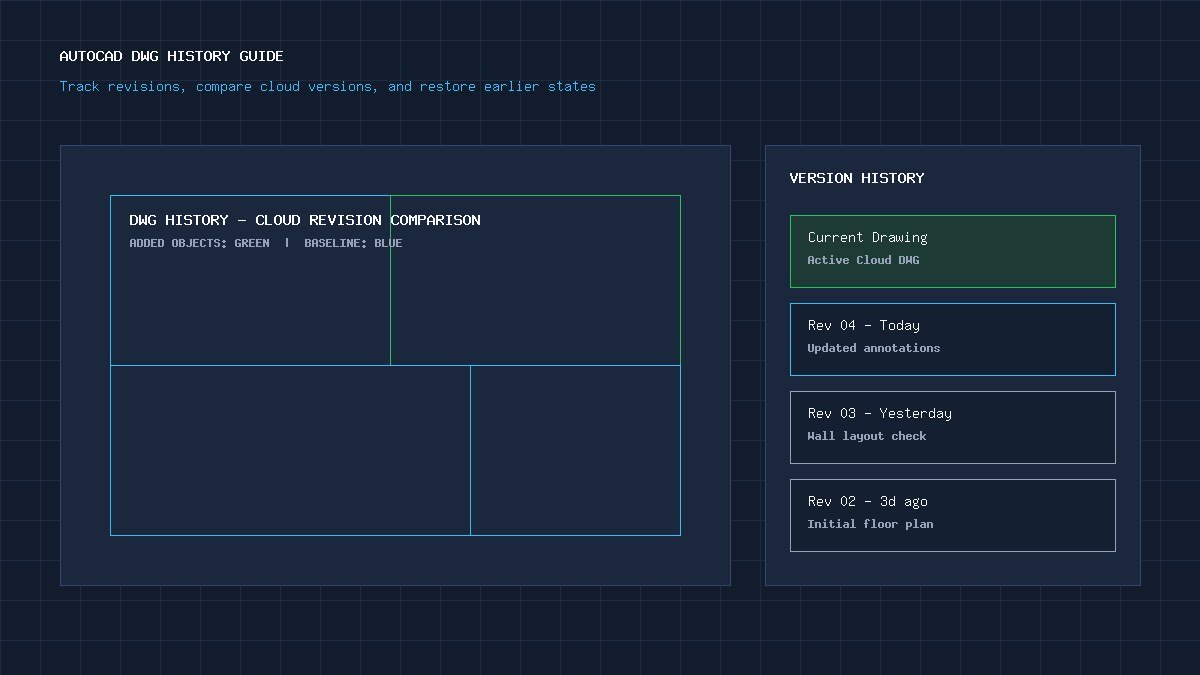
The purpose of AutoCAD DWG history (displayed in the Drawing History palette) is to give drafters, engineers, and project teams a clear version trail for active DWG files without renaming files manually every time you save.
Key benefits include:
- Revision accountability: Check dates, timestamps, and contributors on saved versions when collaborating on cloud-hosted drawings.
- Fast visual auditing: Compare a past version against your current drawing to spot added, removed, or modified objects quickly.
- Safe rollback: Restore an earlier drawing version if a recent edit introduces errors or design conflicts.
Before using AutoCAD DWG history, keep two requirements in mind: you must be signed in to an eligible Autodesk subscription account, and your drawing must be saved in a supported cloud storage location (such as OneDrive, Dropbox, or Box) rather than a plain local or standard network folder.
How to Use AutoCAD DWG History Step by Step
Follow these steps to track and manage revisions with AutoCAD DWG history:
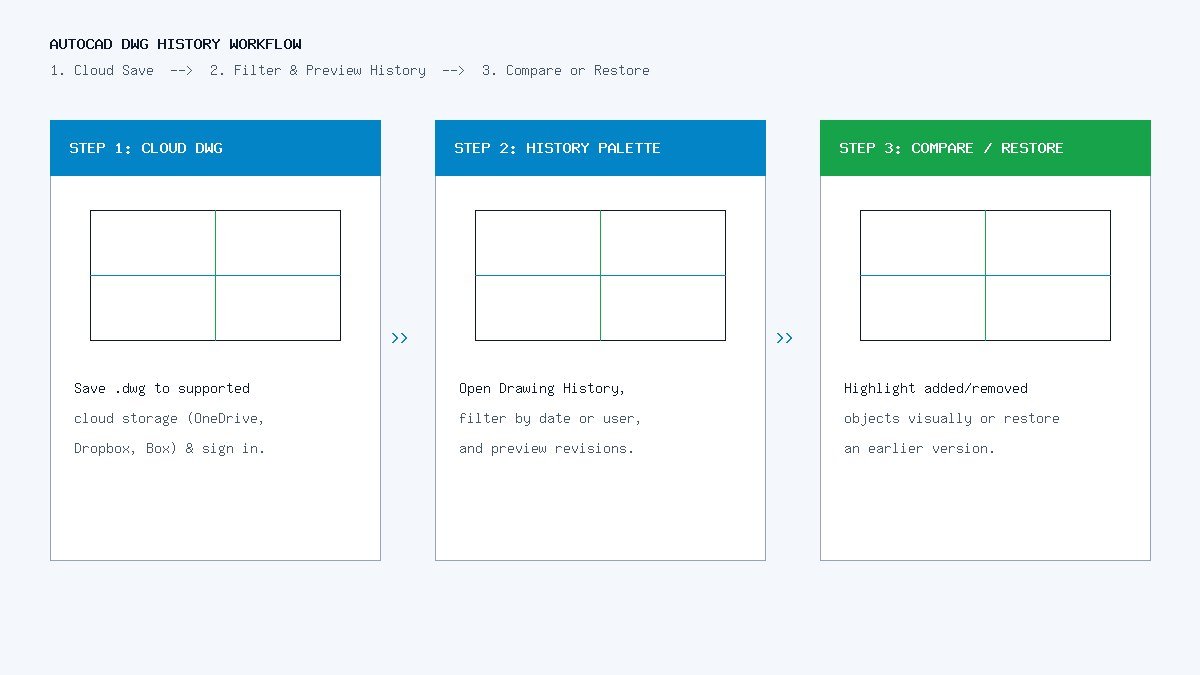
- Save your drawing to supported cloud storage: Open or save your
.dwgfile inside a supported cloud folder and sign in to your cloud storage and Autodesk accounts when prompted. - Open the Drawing History palette: When working on a supported cloud drawing, the Drawing History palette often opens automatically. You can also open it manually from the View tab on the ribbon (or via the Collaborate tab > History panel, depending on your AutoCAD version and workspace).
- Filter the version list: Use the filter options at the top of the palette to narrow down past revisions by date, time range, or user who saved the file.
- Preview a historical version: Select a version entry in the list to inspect when it was saved and who made the change.
- Compare changes visually: Run the comparison option on a selected version against your current drawing. Added, removed, and modified geometry are highlighted so you can review edits without checking lines manually.
- Restore a previous version when needed: If you need to roll back to an earlier state, restore the selected version carefully—accounting for any recent edits made by teammates before overwriting active work.
Best Practices for DWG History
- Combine with drawing comparison workflows: Check version differences before major plotting or xref updates to catch unintended shifts early. See our guide on how to compare two drawings in AutoCAD for more comparison details.
- Verify cloud sync and sign-in: If no versions appear or the drawing is flagged as unsupported, confirm that the file is inside a synced cloud folder and that your cloud sign-in is active.
- Coordinate before restoring: Restoring an older version reverts the drawing state, so check with collaborators first when multiple people edit the same file.
Frequently Asked Questions
Why does AutoCAD DWG history not show versions for a local DWG file?
Version history depends on cloud storage versioning. Drawings saved only to a local hard drive or standard network drive will not display cloud version history entries.
Can I inspect changes without replacing my current drawing?
Yes. You can review version entries and compare a past revision against your current drawing before deciding whether to restore an earlier version.
Thanks for visiting my blog, good luck on becoming an AutoCAD master.