Hi everyone, welcome back to autocadtip.com
Need to share drawings with teammates, clients, or older CAD software without opening and saving files one by one? AutoCAD DWG Convert lets you batch convert multiple drawings into a target DWG format while applying cleanup and standardization actions in a single pass.
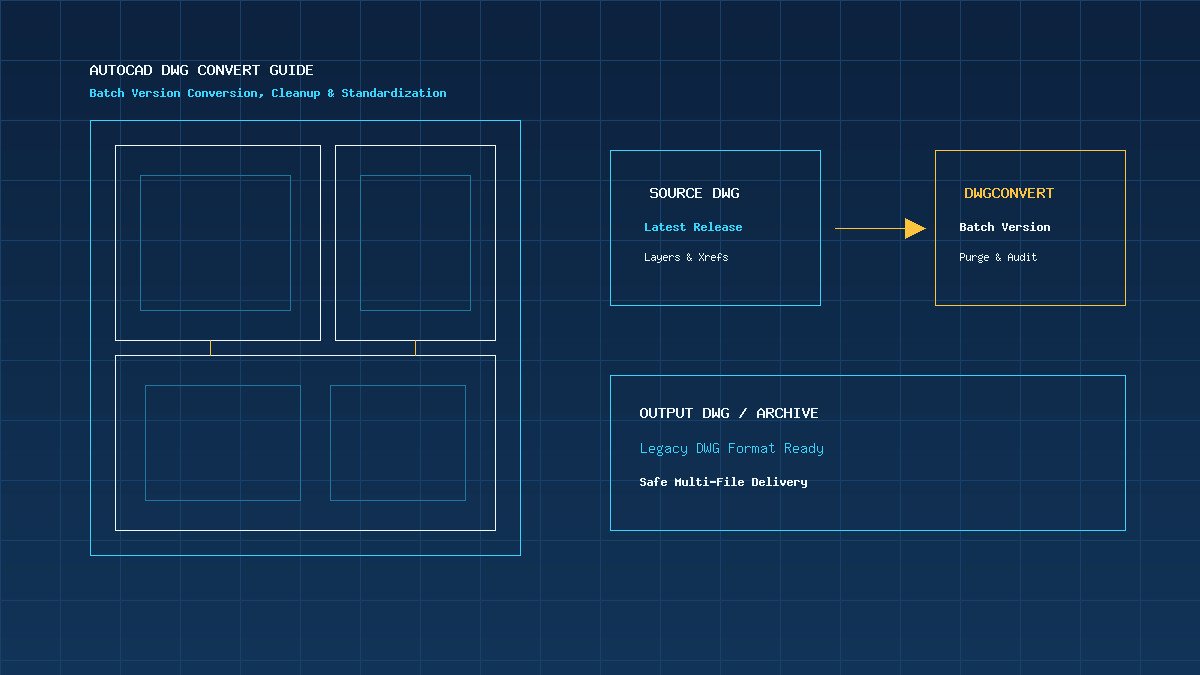
What Is AutoCAD DWG Convert?
AutoCAD DWG Convert (launched via the DWGCONVERT command) is a built-in batch conversion tool for changing drawing file versions and preparing DWG files for distribution. Instead of manually saving each file to an older release format, you can queue multiple drawings, choose a destination format, and run optional cleanup tasks automatically. (Note: DWGCONVERT is available in Windows AutoCAD and DWG TrueView, and is not available in AutoCAD for Mac.)
How to Use DWG Convert in AutoCAD
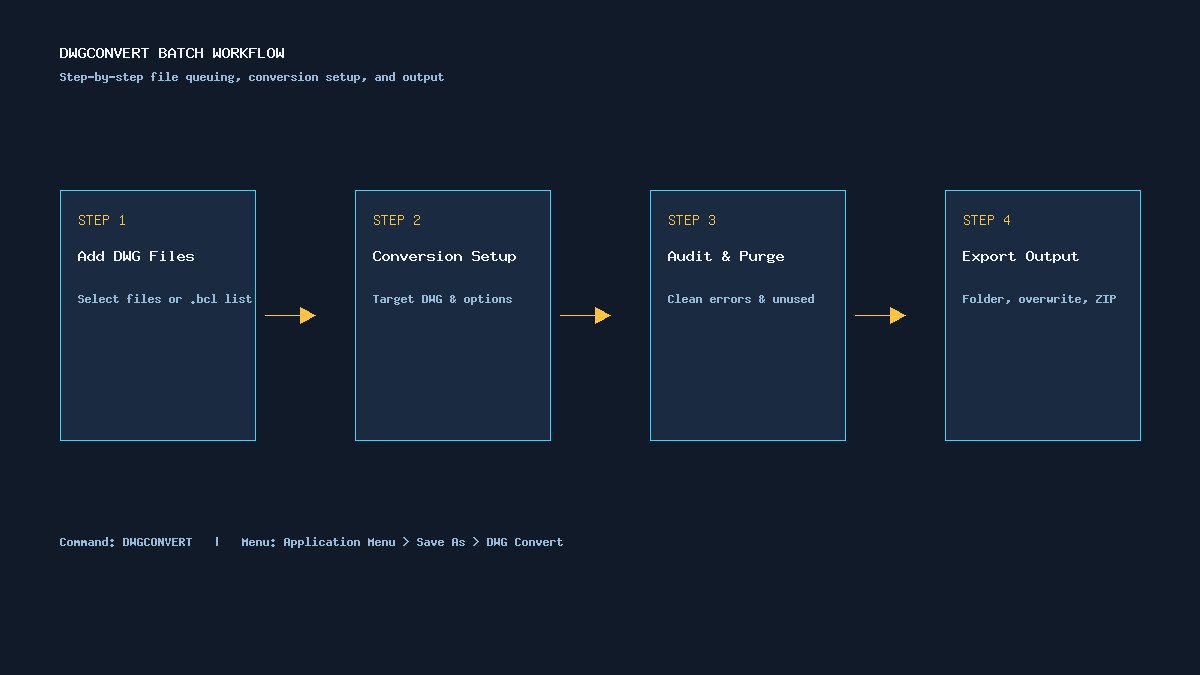
Follow these steps to batch convert drawings cleanly:
- Open the tool: Type
DWGCONVERTin the command line and press Enter, or select Application menu > Save As > DWG Convert. - Add drawing files: Click Add File (or drag files into the list) to select one or more DWG files. You can also save or load a batch file list (
.bcl) for recurring projects. - Select or create a conversion setup: Choose an existing setup in Select a conversion setup, or click Conversion Setups to create a custom profile.
- Pick the target DWG format: Inside your conversion setup, choose the required DWG version format (for example, an older DWG format for legacy compatibility), and configure whether files overwrite originals, create copies, or package into a ZIP/EXE.
- Configure conversion actions: Enable helpful actions such as Check and fix errors (audits drawings), Purge drawings (removes unused styles/blocks), or Bind external references if you need self-contained deliverables.
- Run the conversion: Click Convert and choose your output folder to process all checked drawings.
Best Practices for Smooth DWG Conversion
- Keep source files closed: Close drawings you are converting—and avoid keeping a source file containing page setups open—so files are not skipped or locked.
- Set default save habits too: For everyday single-file saving, learn how to set the default file format version for saving in AutoCAD.
- Check Xrefs before sharing: Verify external reference paths and decide whether to keep or bind Xrefs before sending files outside your team. See how to use the Xref feature in AutoCAD for details.
- Test on a copy first: When testing a new conversion setup or purge/audit action, output to a separate folder first to verify layers, annotations, and blocks.
Frequently Asked Questions
Does AutoCAD DWG Convert modify my original drawings?
It depends on your conversion setup. You can save converted files to a new folder, overwrite existing files, or output a ZIP/EXE archive—using a separate destination folder is recommended when testing new settings.
Can I reuse the same DWG Convert settings on future projects?
Yes. Save a custom Conversion Setup for your standard target DWG version and cleanup options so your team can reuse it consistently across batches.
Thanks for visiting my blog, good luck on becoming an AutoCAD master.