Hi everyone, welcome back to autocadtip.com.
You’ve just downloaded a new hatch pattern, a linetype file, or a template drawing, but you don’t know where to put it so AutoCAD will recognize it. Or maybe you want to back up your AutoCAD configuration before reinstalling your computer. Either way, the first thing you need to know is the AutoCAD support file location and the folder where AutoCAD keeps its templates.
This guide shows you how to find the right folders on Windows and how to view and change those paths from inside AutoCAD.
Quick answer: on Windows, your user Support folder is
C:\Users\<user name>\AppData\Roaming\Autodesk\AutoCAD 20xx\Rxx.x\enu\Support\and your template folder isC:\Users\<user name>\AppData\Local\Autodesk\AutoCAD 20xx\Rxx.x\enu\Template\. To see the exact paths on your PC, typeOPTIONSand open the Files tab.
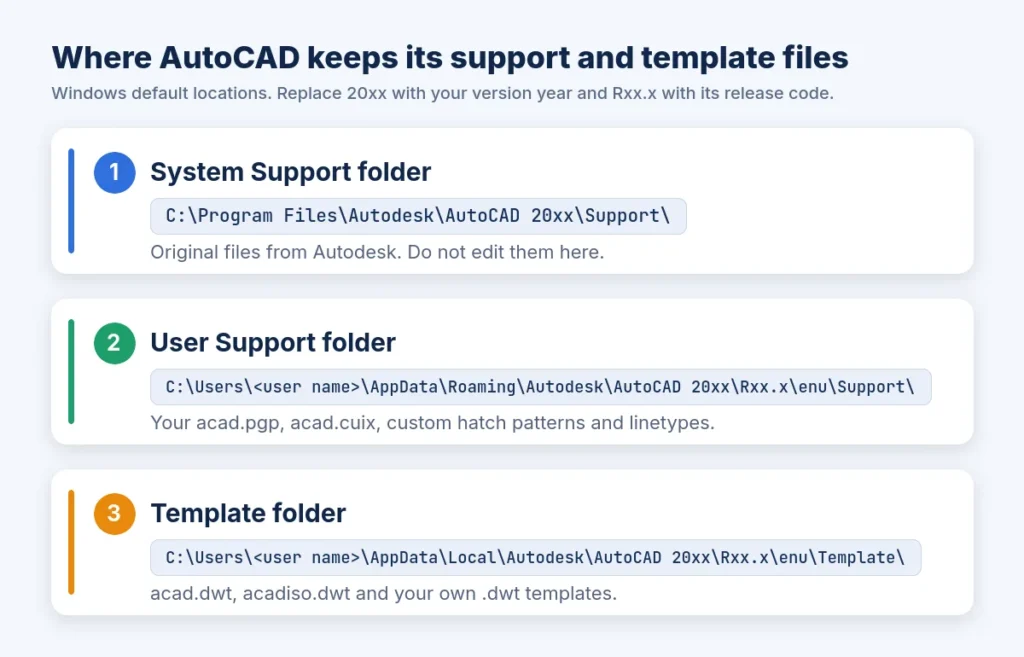
Default AutoCAD support and template folder locations on Windows.
1. What Are Support Files in AutoCAD?
Support files are the files AutoCAD reads at startup to load its settings, hatch patterns, linetypes, command aliases and interface. The most common ones are:
| File | Purpose |
|---|---|
| acad.pat / acadiso.pat | Hatch patterns (acad.pat uses inches, acadiso.pat uses metric units) |
| acad.lin / acadiso.lin | Linetype definitions |
| acad.pgp | Command aliases, for example typing L to draw a Line |
| acad.cuix | The interface: ribbon, toolbars, menus, keyboard shortcuts |
| acad.shx and other font files | Fonts used in drawings |
2. Where Is the AutoCAD Support Folder?
AutoCAD stores support files in two locations: a system folder and a user folder.
System folder (default install location)
C:\Program Files\Autodesk\AutoCAD 20xx\Support\Here 20xx is the version year; for AutoCAD 2026 it is AutoCAD 2026. This folder holds the original files supplied by Autodesk. You should not edit the files in this folder directly, because updates or a reinstall may overwrite them.
User folder (the right place for custom files)
C:\Users\<user name>\AppData\Roaming\Autodesk\AutoCAD 20xx\Rxx.x\enu\Support\This folder stores the settings of each Windows account, for example the acad.pgp and acad.cuix files you have modified. If you want to add your own hatch patterns or linetypes, copy them into this folder.
In the path above, Rxx.x is the release code that matches each AutoCAD version:
| AutoCAD version | Release code (Rxx.x) |
|---|---|
| AutoCAD 2022 | R24.1 |
| AutoCAD 2023 | R24.2 |
| AutoCAD 2024 | R24.3 |
| AutoCAD 2025 | R25.0 |
| AutoCAD 2026 | R25.1 |
| AutoCAD 2027 | R26.0 |
Note: the
AppDatafolder is hidden by default. Turn on Hidden items in the View tab of File Explorer, or type%appdata%in the File Explorer address bar to jump straight to the Roaming folder.
3. Where Is the AutoCAD Template (.dwt) Folder?
A template file (a drawing template with the .dwt extension) stores units, layers, dimension styles, title blocks and other settings. Every time you start a new drawing with the NEW or QNEW command, AutoCAD builds it from a template file.
Default path:
C:\Users\<user name>\AppData\Local\Autodesk\AutoCAD 20xx\Rxx.x\enu\Template\The two default templates you will use most are acad.dwt (inches) and acadiso.dwt (metric). If you draw in metric units, use acadiso.dwt, or create your own template and save it in this folder so it is easy to pick when you start a new drawing.
Related: Controls display Create New Drawing dialog box, Change Standard font in AutoCAD template and how to turn off the grid permanently with a DWT template.
4. How to View and Change Folder Paths Inside AutoCAD
You don’t have to memorize any of these paths. You can look them up and edit them directly in the Options dialog box.
- Type the OPTIONS command (or
OP) and press Enter. - Select the Files tab.
-
Expand the following entries to view or change them:
- Support File Search Path: the list of folders where AutoCAD looks for support files.
- Template Settings: the template folder location and the default template for the
QNEWcommand. - Automatic Save File Location: where autosave files are stored.
- To add a new folder, select the entry you want to edit, click Add, then Browse to the folder. Click Apply and OK to finish.
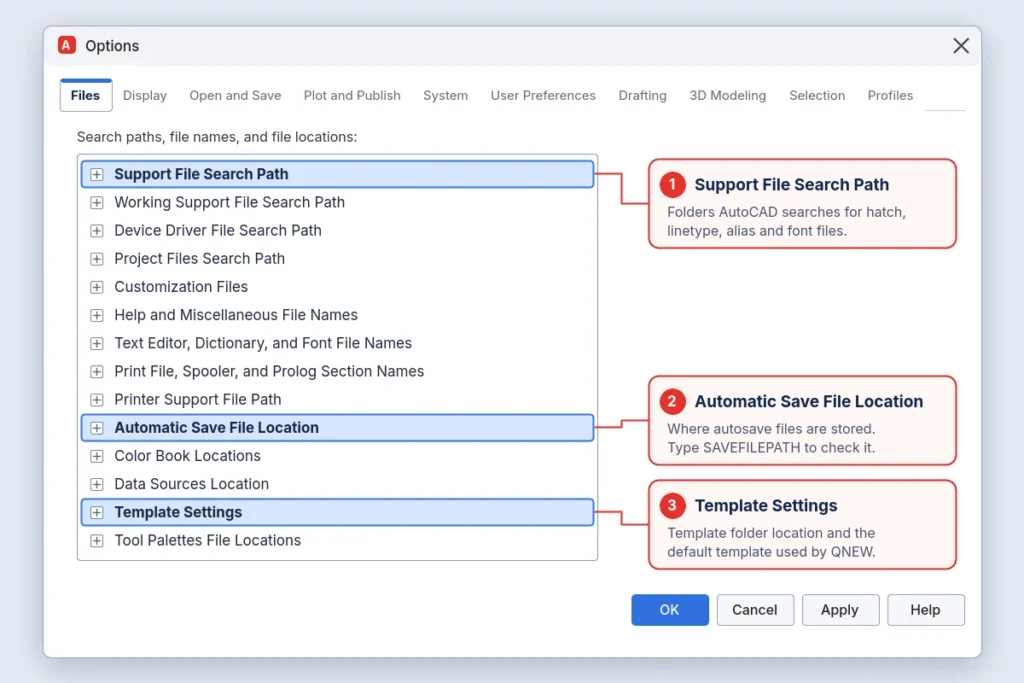
The OPTIONS dialog, Files tab: where to view and change support, autosave and template paths (illustration).
Adding your own folder to the Support File Search Path is the cleanest way to manage custom files. You can keep all your hatch patterns, linetypes and fonts in one folder (for example on drive D or in cloud storage), then point AutoCAD to that path. If you already load LISP routines this way, see Autolisp load application in AutoCAD.
5. Tips for Using and Backing Up Support Files
- Back up before editing: always copy
acad.pgp,acad.cuixandacad.patsomewhere else before changing them. - Reload aliases without restarting: after editing
acad.pgp, type theREINITcommand, check PGP File, then click OK. New to aliases? Read How to edit shortcut command in AutoCAD. - Add custom content: see How to upload custom hatch patterns in AutoCAD?, How to load a Linetype in AutoCAD 2023? and How to upload fonts in AutoCAD?
- Move your settings to a new computer: copy the files in your user Support folder (especially
acad.pgpandacad.cuix) to the matching folder on the new machine. - Use a separate folder for custom files: keeping them apart from Autodesk’s original files makes them easier to manage and keeps them safe if you reinstall.
6. Frequently Asked Questions
Where is the acad.pgp file in AutoCAD?
The acad.pgp file is in your user Support folder: C:\Users\<user name>\AppData\Roaming\Autodesk\AutoCAD 20xx\Rxx.x\enu\Support\. You can also open it quickly from the Manage tab by choosing Edit Aliases > Edit Aliases.
Where do I put a new hatch pattern so AutoCAD recognizes it?
Copy the .pat file into a folder that is part of the Support File Search Path (for example your user Support folder), then run the HATCH command again. The new pattern appears in the Custom category of the pattern list. If you don’t see it, restart AutoCAD.
Which file is AutoCAD’s default template?
It depends on your units: acad.dwt for inches and acadiso.dwt for metric. You can change the default template at Options > Files > Template Settings > Default Template File Name for QNEW.
Why can’t I see the AppData folder?
Windows hides this folder. Turn on Hidden items in the View tab of File Explorer, or type %appdata% in the address bar to open the Roaming folder quickly.
Where does AutoCAD store autosave files?
Go to Options > Files > Automatic Save File Location, or type SAVEFILEPATH at the command line to see the current folder. For more settings, read Tips for AutoCAD User – Setup AutoSave.
Thanks for visiting autocadtip.com. Good luck becoming an AutoCAD master.