Save as drawing in AutoCAD

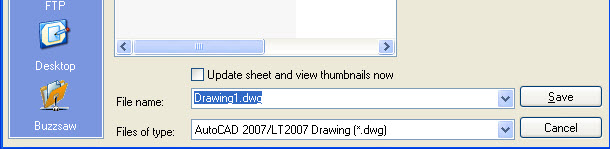
Challenge: save an existing drawing into other name, for example: beam.dwg > beam detail.dwg Solution: In AutoCAD follow to change an existing drawing’s name. There are two ways: 1st way: Click File > choose Save as 2nd way: Type shortcut is Ctrl + Shift + S Show Save drawing as > choose position to Save in > change… Read More »

Save drawing in AutoCAD

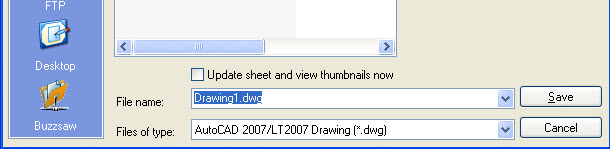
When you open AutoCAD, there is an existing sheet called “Drawing1.dwg”. You can work on this sheet and then save it by one of three ways. 1st way: Click File > choose Save 2nd way: Click Save icon on toolbar 3rd way: Type shortcut is Ctrl + S Show Save drawing as > choose position to Save in… Read More »

Control cursor in AutoCAD

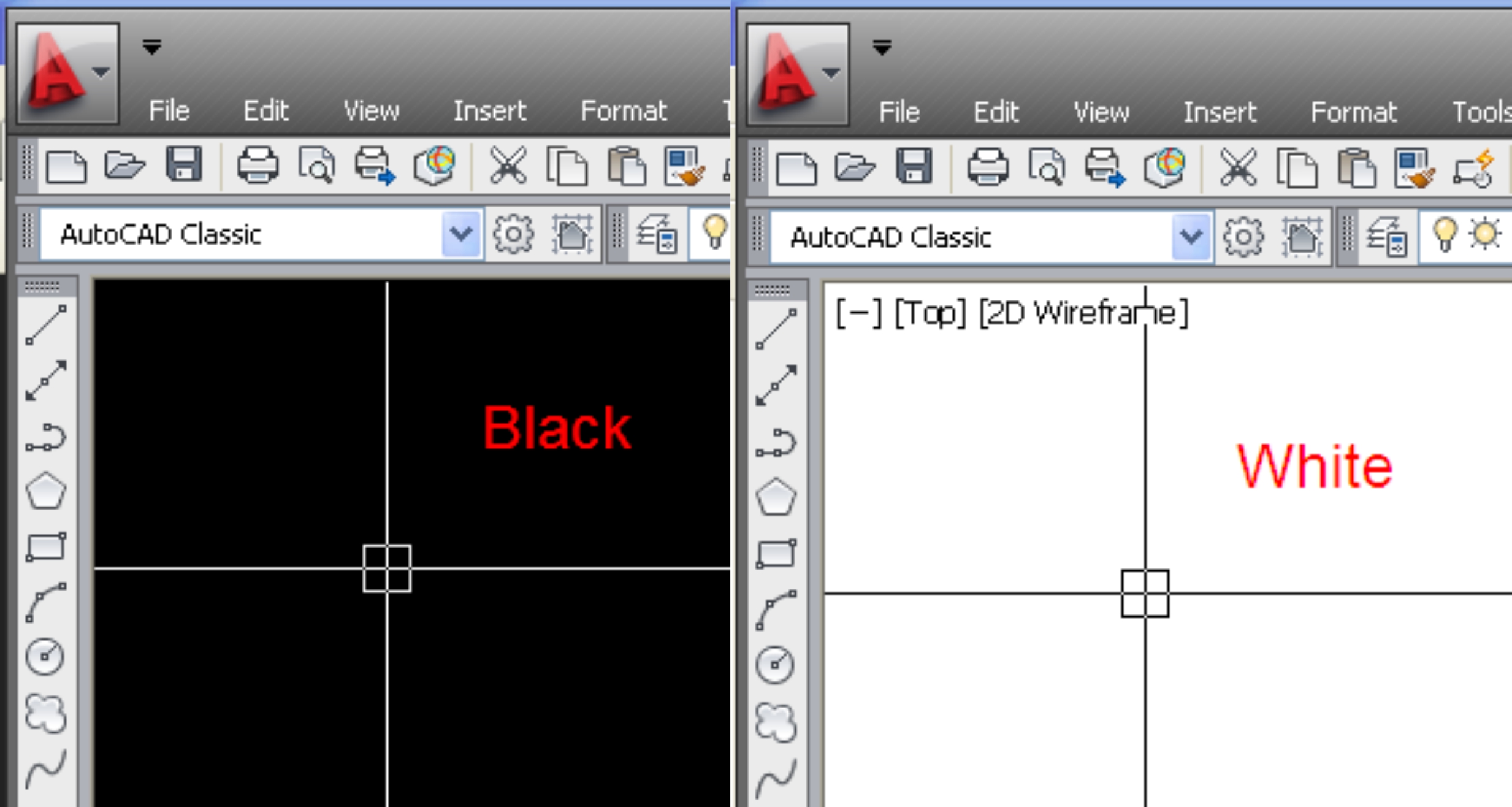
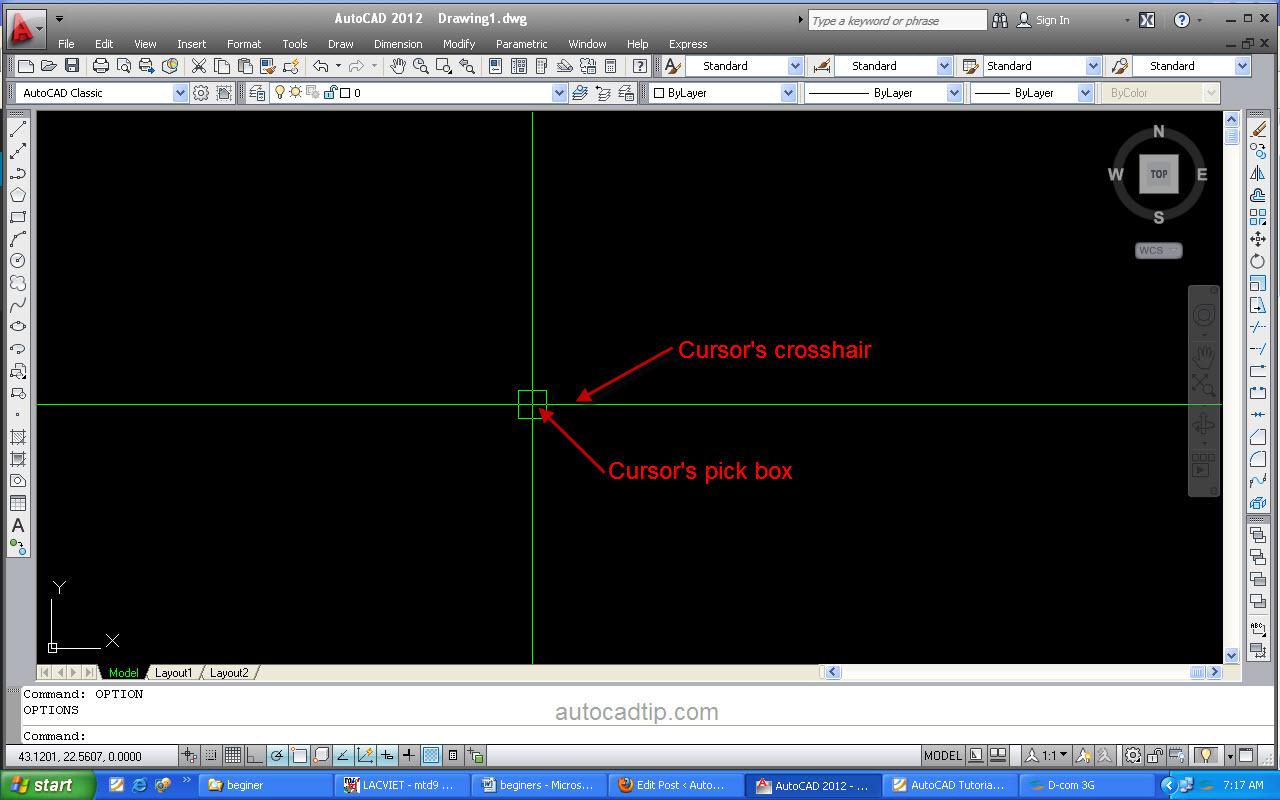
Challenge: control cursor’s color, crosshair size, pick box size Solution: in AutoCAD follow you do those. You can change cursor’s color, size very easy so that according with your wish. Option command will help you do those as following: Cursor’s color: The default cursor’s color is white Access option dialog box, click display > color > 2D model… Read More »

How to Type command in AutoCAD

All AutoCAD commands can be typed in at the command line. Commands have shortcut keys that can enter shortcut command or type command sentence. So commands have not shortcut that only type command sentence Step 1: Type the desired command at the command prompt. Command: COPY Or Type the command’s alias. Command: CO Step 2: Type an option… Read More »

Repeat last command in AutoCAD software

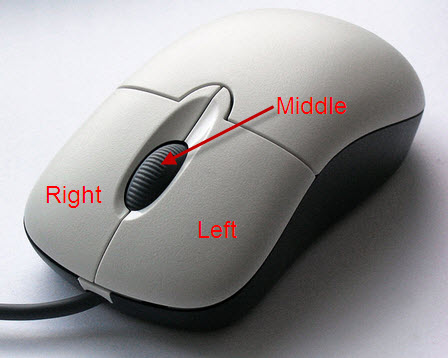
AutoCAD software has got an important feature that is repeating the last command. It helps you to draw quickly more. The last used AutoCAD command can be repeated again by one of the following three methods: 1st way: press ENTER key 2nd way: press SPACE key 3rd way: press RIGHT OF MOUSE