Hi everyone, welcome back to autocadtip.com.
If you manage dozens of layouts across multiple DWG files, Sheet Set Manager in AutoCAD (SSM) can save you hours. It lets you organize, number, plot, and publish an entire drawing package from a single palette. This guide walks you through the essentials, step by step.
What Is Sheet Set Manager in AutoCAD?
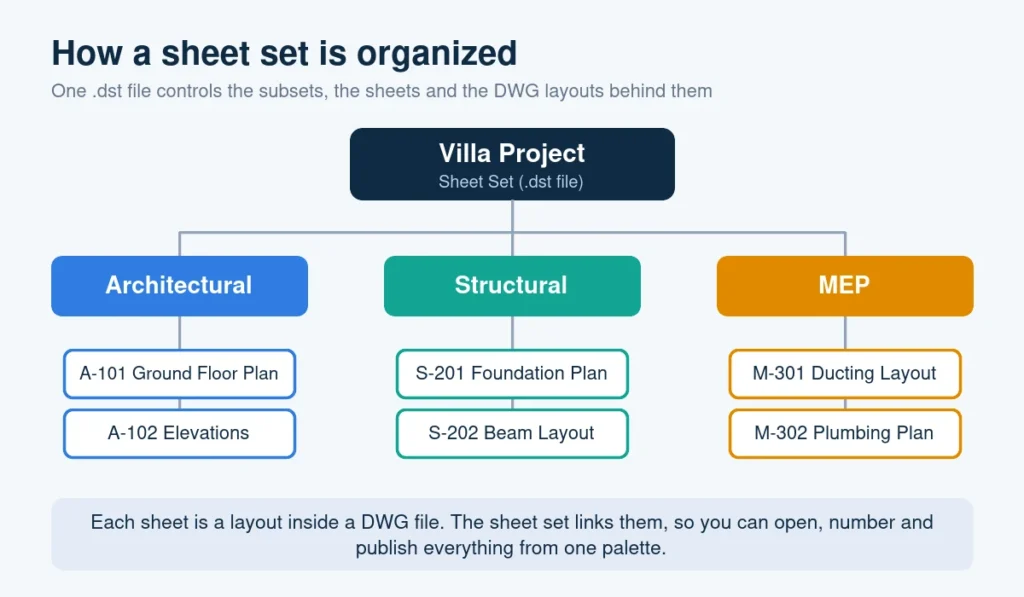
Sheet Set Manager is a palette that groups layouts from different DWG files into one organized set (a .dst file). With it you can:
- Open any sheet with a double-click
- Auto-number and rename sheets
- Generate a sheet list table
- Batch plot or publish to PDF/DWF
- Fill title blocks automatically with project data
Step 1: Open Sheet Set Manager
- Type SSM in the command line and press Enter. Or go to View tab → Palettes → Sheet Set Manager. Shortcut: Ctrl + 4.
- The palette appears on the left. Dock it for easy access.
Step 2: Create a New Sheet Set
- In the palette, click the dropdown and select New Sheet Set.
- Choose An example sheet set (best for beginners) or Existing drawings, then click Next.
- Enter a name, a description, and the folder where the
.dstfile will be saved. - Click Sheet Set Properties to set the Page Setup Overrides and the Label Block for Views if needed.
- Click Finish.
Pro tip: Save the sheet set in the same project folder as your DWG files so paths stay valid when you share it.
Step 3: Organize Sheets with Subsets
Subsets work like folders, such as Architectural, Structural, and MEP.
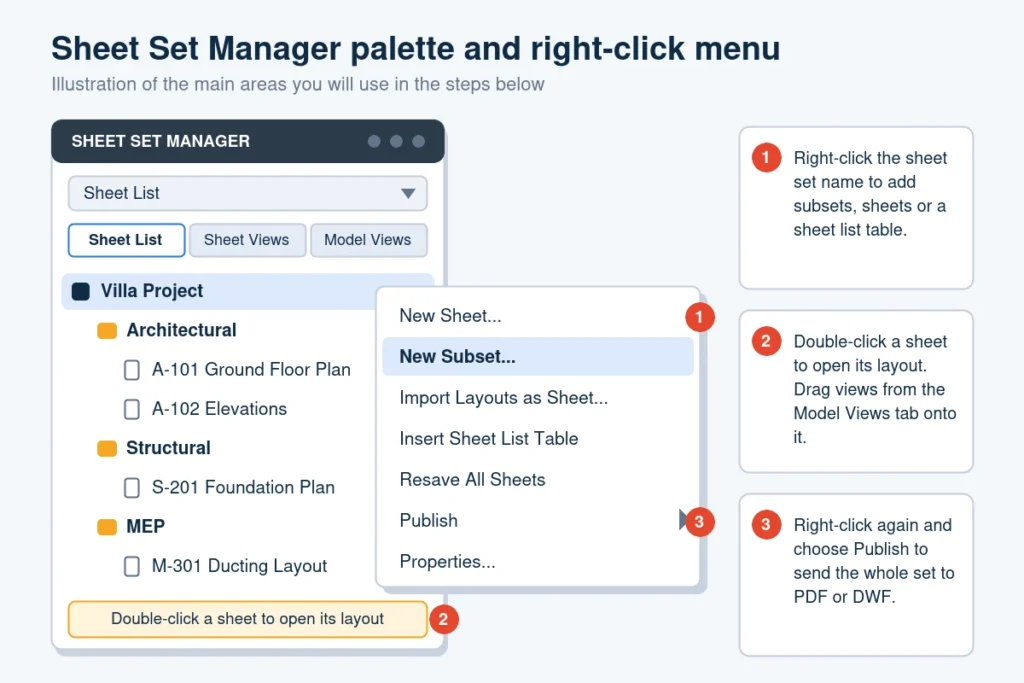
- Right-click the sheet set name → New Subset.
- Name the subset (e.g., “Floor Plans”) and set its storage folder.
- Drag and drop sheets between subsets to reorder them.
Step 4: Add Sheets to the Set
Create a new sheet:
- Right-click a subset → New Sheet.
- Enter the sheet number and title (e.g., “A-101 – Ground Floor Plan”).
- Click OK. AutoCAD creates a new DWG with a layout. New to layouts? Read Create new a layout in AutoCAD.
Import existing layouts:
- Right-click the subset → Import Layouts as Sheets.
- Click Browse for Drawings and select your files.
- Tick the layouts you want and click Import Checked.
Step 5: Add Views with the Model Views Tab
- Switch to the Model Views tab.
- Click Add New Location and choose the folder with your drawings.
- Drag a drawing’s view from the list into a sheet to place it as a viewport. AutoCAD scales it automatically.
Step 6: Insert Title Block Data Automatically
- Right-click the sheet set → Properties → Edit Custom Properties.
- Add fields such as Project Name, Client, and Issue Date.
- In your title block, use Insert → Field → SheetSet to link text to these properties.
- Update the sheet set once, and all title blocks update with it.
Step 7: Create a Sheet List Table
- Open any sheet in the set.
- Right-click the sheet set name → Insert Sheet List Table.
- Choose the table style and click OK, then pick an insertion point.
The table updates when you right-click it and choose Update Table Data Links.
Step 8: Publish or Plot the Entire Set
- Right-click the sheet set name (or a subset).
- Select Publish → Publish to PDF (or DWF / Plotter).
- Choose Publish Options to merge into a multi-sheet PDF.
- Click Publish and pick a save location.
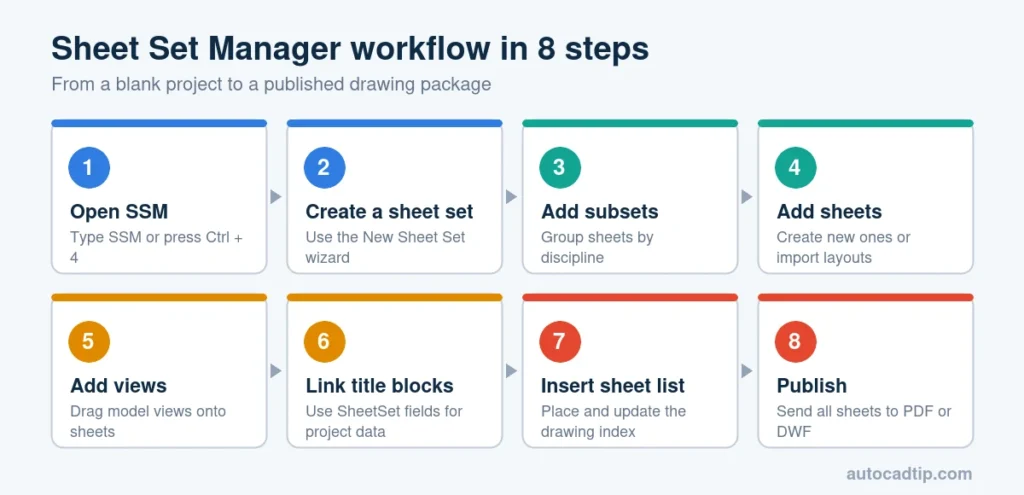
Here is the whole Sheet Set Manager workflow at a glance:
Quick Reference: Common SSM Commands
| Command | Purpose |
|---|---|
SSM / SHEETSET |
Open Sheet Set Manager |
NEWSHEETSET |
Launch the Create Sheet Set wizard |
OPENSHEETSET |
Open an existing .dst file |
PUBLISH |
Batch publish sheets |
CLOSESHEETSET |
Close the current sheet set |
Troubleshooting Common Issues
- Sheet Set Manager not showing? Press Ctrl + 4. If the palette is off-screen, type
SSM, right-click the title bar, choose Move, then press an arrow key. - Missing sheets or broken paths? Right-click the sheet → Resave All Sheets, or use Sheet Set Properties to correct the folder paths.
- Fields not updating? Type
UPDATEFIELD, select all, and press Enter. - Sheet set won’t open? Check that the
.dstfile isn’t set to read-only or locked by another user.
Best Practices
- Use a consistent naming system, such as A-101 or S-201.
- Keep the
.dstfile and DWG files together in one project folder. - Create a sheet set template (.dst) for repeat projects.
- Avoid renaming or moving DWG files outside the Sheet Set Manager.
Sheet Set Manager FAQ
Where is Sheet Set Manager in AutoCAD?
Go to View tab → Palettes → Sheet Set Manager, press Ctrl + 4, or type SSM in the command line.
What is a DST file in AutoCAD?
A DST file is the sheet set data file. It stores the sheet list, subsets, custom properties, and the links to your DWG layouts, while the drawings themselves stay in their DWG files.
Can I add existing drawings to a sheet set?
Yes. Choose Existing drawings in the wizard, or right-click a subset and use Import Layouts as Sheets.
How do I publish all sheets to one PDF?
Right-click the sheet set name, choose Publish → Publish to PDF, and open Publish Options to choose between one multi-sheet PDF and one PDF per sheet.
Thanks for reading, good luck becoming an AutoCAD master.