Category Archives: TIPS

Load custom hatch pattern in AutoCAD

When you have downloaded or created hatch pattern. Now you want to load this file into AutoCAD software. How to load this application? Today I will guide to you the simply way. That is add a support file search path. If you place custom hatch file into your own folder, you can simply add support file search path.… Read More »
Autolisp load application in AutoCAD

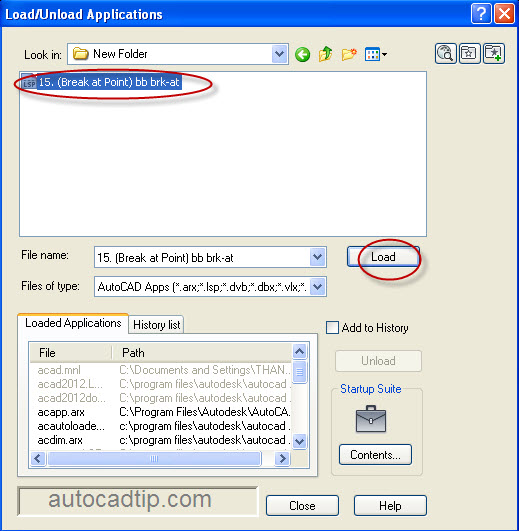
How to load Application? Autolisp program is very important. It will help you to draw faster. How to load auto lisp in AutoCAD software? If you have an Autolisp file, you can load it by using load application feature in manage tab such as: Click Tool > choose Load Application. Or you can type APPLOAD command > press… Read More »

Repeat last command in AutoCAD software

AutoCAD software has got an important feature that is repeating the last command. It helps you to draw quickly more. The last used AutoCAD command can be repeated again by one of the following three methods: 1st way: press ENTER key 2nd way: press SPACE key 3rd way: press RIGHT OF MOUSE

Remove layers in AutoCAD

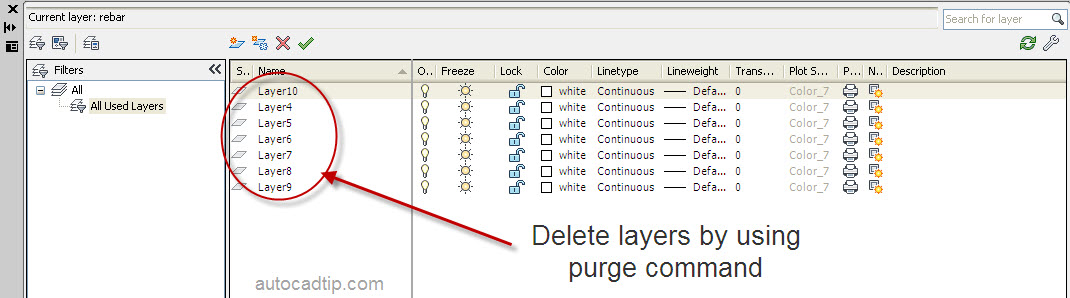
Challenge for you: You have a lot of layers in your drawing AutoCAD which you are not using, but you are not sure how to remove these layers. Solution for you: This situation occurs often when you receive drawings from customers or partners in a project; you may also start from a template loaded with more layers than… Read More »

Copy Autocad to Word

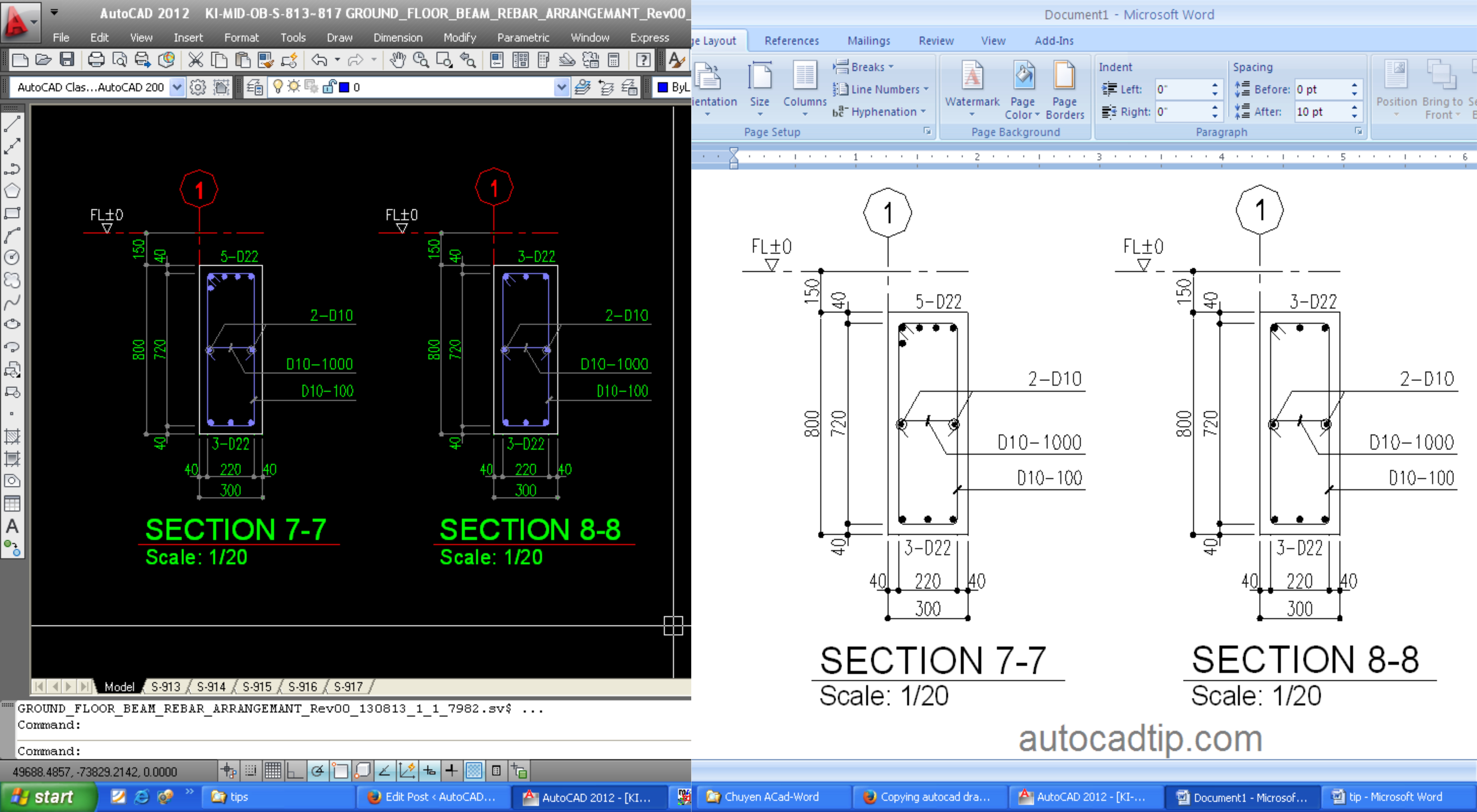
Today, I will give a tutorial to everyone how to copy figure in drawing AutoCAD into MS Word. Here I will introduce two ways to do that. Copy and Past directly Step 1: In AutoCAD chose a part of in drawing AutoCAD that you need. Step 2: Click Edit > click Copy or press shortcut is Ctrl +… Read More »